The Silent SaaS Threat: Part 3 – The Response Playbook
tl;dr
Invictus has created a simplified response playbook for when a malicious OAuth app is discovered in an Entra environment. Here are the five high-level steps for response:
- Detect: Identify the early forensic traces of OAuth abuse, including rogue consents and unexpected credential modifications.
- Assess: Determine the application's blast radius and criticality by checking Entra ID Roles, Azure RBAC, and Graph API permissions.
- Contain: Safely sever the attacker's active access by disabling sign-ins and revoking sessions.
- Analyze: Correlate multiple log sources to build an attack timeline and see exactly what data the attacker touched.
- Eradicate: Execute a structured clean-up plan to remove the application and revert malicious changes.
Introduction
In Part 1, we identified the SaaS risk. In Part 2, we built the proactive fortress. In Part 3, we assume breach. When a malicious OAuth application is discovered in an Entra environment, responders must move quickly to determine its impact.
This is not a hypothetical scenario. During the Midnight Blizzard breach of Microsoft's corporate environment, the threat actor compromised a legacy test tenant and identified an OAuth application with elevated permissions. From there, they created additional malicious OAuth applications that provided access to senior leadership mailboxes. The attack did not rely on password theft or MFA bypass. The access was granted through existing trust relationships and application permissions.
That is what makes OAuth abuse difficult to detect. Once consent has been granted, the application operates as designed. From the platform's perspective, the access is legitimate.
But what happens when an attacker successfully compromises one of those apps, and they become part of an active incident. The initial damage was already done, the consent was granted, the permissions approved and the trust relationship was established.
Now comes the (for us as incident responders) fun part of figuring out exactly what the application did, what data it touched, and how to safely get it out of the environment. Here is the light version of the Invictus playbook for investigation and remediating SaaS app abuse.
Is a Malicious App Hiding in Your Tenant?
Attackers use OAuth apps to maintain silent persistence for months. Invictus conducts targeted SaaS App Assessments to hunt through your logs, uncover rogue service principals, and gets rid of hidden threats before data exfiltration begins.
Step 1: Detect the anomaly
Even with strict policies in place, watch actively for anomalies. OAuth abuse typically leaves a good amount of forensic traces in the logs before it escalates into a full-scale incident. At a minimum monitor for the following signals:
- Consent & App Registrations: Alert on new application consent events, the creation of service principals, and any instance when admin consent is granted to high-impact Graph permissions.
- Credential Modifications: Monitor for the addition of new client secrets or certificates to existing applications, especially when performed outside expected deployment or rotation processes.
- Suspicious Sign-In Activity: Monitor service principal sign-ins originating from unusual IP addresses, unfamiliar user-agents or anomalous geographic locations.
- Unusual Usage Patterns: Investigate sudden spikes in API calls, large-scale mailbox enumeration, or mass file access via the Graph API.
Step 2: Assessing Privilege & Blast Radius
After identifying a suspicious application or anomaly, the new step is to determine its potential impact. Before diving into the fun work, analysing the detailed logs, responders should first understand what the application is capable of doing.
Unfortunately, there is no easy way to identify all permissions assigned to the application, so we have to check a few places:
- Business Criticality
When you identify a malicious application, the first thing you want to do is remove it. Unfortunately, that's not how things work in a business environment. First, we need to answer a fundamental question: Is this a legitimate, business-critical application that has been compromised or granted excessive privileges, or is it a purely malicious shadow IT application that we can eradicate immediately?
- What to check: Does the business rely on this application? Are legitimate users actively using it?
- The Risk: Blindly deleting or disabling a legitimate application during containment can cause an immediate operational outage, compounding the incident.
- Where to check: Check the Owners tab under the Enterprise Application in Entra ID to identify an internal contact or product owner who can verify the app's purpose. Additionally, review the logs to see if the application is actively being used.
- Entra ID Role Assignments
Attackers leverage directory roles to gain permanent persistence or move laterally. A single high-privilege role can turn a SaaS anomaly into a tenant takeover.
- What to check: What roles does the application have access to, and what does this mean for the blast radius?
- The Risk: An app with Application Administrator can inject secrets into other high-privilege apps, allowing an attacker to hop to these identities.
- Where to check: Go to Entra ID → Manage → Roles and administrators → Check the assignments for the different administrator roles.
- Azure RBAC Permissions
While identity roles control access to identities and directory resources, Azure RBAC governs access to the actual resources in Azure. It is essential to determine whether the application can interact with cloud resources.
- What to check: Look for high-privilege roles such as Owner, Contributor, or User Access Administrator, especially at the subscription or resource group level.
- The Risk: An application with these roles can modify infrastructure, access sensitive data, or grant additional permissions, potentially leading to full environment compromise.
- Where to check: Navigate to Subscriptions → Select the relevant subscription → Access Control (IAM) → Check Access. Search for the application to understand its effective permissions across the environment.
- API & Graph Permissions
Even without directory roles or Azure RBAC, an application can still cause massive damage if it holds the right API permissions. Investigating these permissions dictates exactly what data the application can touch and how wide the blast radius truly is.
- What to check: Check the Microsoft Graph API scopes granted to the app, paying strict attention to the type of permission assigned: Delegated versus Application.
- The Risk: The permission type defines the entire blast radius:
- Delegated Permissions: The app acts on behalf of a specific logged-in user. The blast radius is limited to whatever data that single compromised user is allowed to access.
- Application Permissions: The blast radius is often tenant-wide. For example, a Delegated Mail.Read risks one mailbox, but an Application Mail.Read grants an attacker the ability to silently scrape the CEO's emails, HR's, and every other mailbox in the organization.
- Where to check: Enterprise Applications → Select the application → Security → Permissions
Step 3: Contain the Threat
Once the business criticality is understood and the anomaly is confirmed malicious, responders must act to stop the bleeding. Do not wait to analyze the logs before containing the app. The immediate goal is to stop the compromised application from causing further damage or accessing sensitive resources while the investigation wraps up.
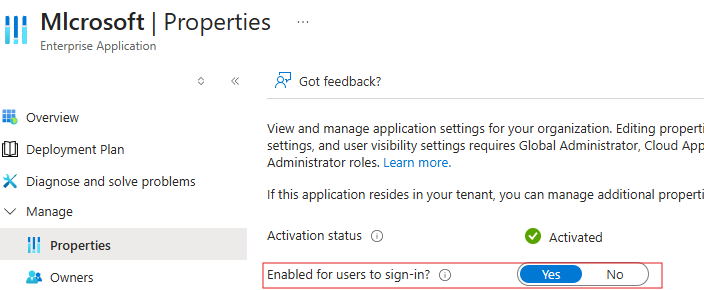
- Disable App Sign-Ins: Disable the application’s ability to authenticate. Navigate to the Enterprise Application's Properties page and toggle Enabled for users to sign-in to No. This instantly prevents the compromised application from being used for new authentications.
- Revoke User Sessions: Invalidate the attacker's refresh tokens. Utilize the "Revoke sessions" feature in the Entra portal for all users who consented to the malicious application.
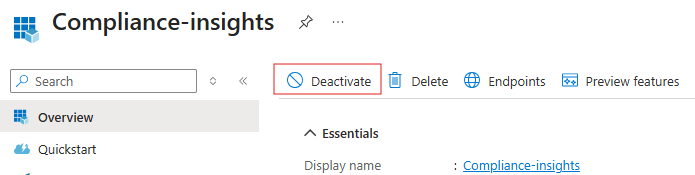
- Deactivate the App Registration (Same-Tenant Apps): If the malicious application was registered directly within the own tenant, utilize Entra ID’s new deactivation feature. Navigate to App registrations, select the application, and click Deactivate on the top menu bar. This safely blocks the app from requesting new access tokens while preserving its metadata and configuration for the investigation.
Step 4: Analyze the App’s Actions
So, a suspicious OAuth application has been identified and the blast radius determined. Now comes the investigation phase: piecing together the timeline to see exactly what the attacker did with that access.
A full-blown investigation guide is way too much for one blog. Instead, we're keeping it to a lightweight version of our playbook to keep things practical and not scare anyone away. Who knows we create one next..?
Luckily for us, Microsoft provides several logging sources that can be used to understand the actions taken by SaaS applications. By correlating data across these sources, we can build a timeline of activity and determine how the application was used, and whether it was abused.
Each log source tells a different part of the story…
Entra ID Sign-In Logs
Once a suspicious OAuth app has been identified (e.g. Docs Viewer 365), the Microsoft Entra Sign‑In logs are essential for understanding what the app actually did. Entra ID logs all sign-in activity in the tenant, and analyzing them can reveal how and when the app was used.
Entra ID sign-in logs include several event types. A user can sign in interactively (supplying a password/MFA) or non-interactively (a background token refresh). In addition, service principals (app-only identities) can sign in with their own credentials. In practical terms:
- Interactive user sign-ins occur when a user actively logs in (entering password/MFA).
- Non-interactive sign-ins are done on behalf of a user by a client app (using a refresh token or authorization code) without new user input.
- Service principal sign‑ins involve no user account at all, the app authenticates with its own credential (client secret or certificate). These are recorded in the Service principal sign-in report.

Entra ID Audit Logs
While sign-in logs show when the application authenticated, the Entra ID Audit Logs reveal how the application was configured and modified. This is where responders track the attacker's administrative footprint.
If an attacker compromises an environment and establishes persistence via a SaaS app, the Audit Logs will capture events such as:
- Consent: Who originally authorized the application (Consent to application), and when it happened.
- Privilege Escalation: Changes to the app's permissions, such as adding high-impact Graph API scopes (Add delegated permission grant).
- Credential Manipulation: The exact moment an attacker added a rogue client secret or certificate to an existing application to maintain backdoor access (Update application – Certificates and secrets management).
Azure Activity Logs
While the Entra ID Sign-In and Audit logs tell how an app entered and accessed the identity layer, Azure Activity Logs show what it did at the resource level across Azure subscriptions.
If an attacker registered an OAuth app and used it to interact with Azure services (e.g., starting VMs, reading secrets, modifying storage), those actions are recorded in the Activity Log. Once a suspicious or malicious OAuth application has been identified whether through delegated consent or service principal sign-ins, the next step is determining what that app actually did in the environment.
Microsoft Graph API Logs
While Azure Activity logs show the resource-level changes, and Entra ID Sign-In logs reveal how apps authenticate, Microsoft Graph API logs capture the Graph API calls OAuth apps make within the tenant.
This level of detail can help understand which data the application accessed or modified whether it was reading user mail, creating calendar events, modifying groups, or querying directory objects.
Unified Audit Logs
The Unified Audit Log (UAL) provides the broadest view of OAuth application activity across all Microsoft 365 services. While other log sources focus on specific areas (authentication, Graph API, Azure resources), the UAL captures actions across Entra ID, Exchange Online, SharePoint, Teams, and other workloads, giving (almost) the complete picture of what OAuth applications did with the data.
A Malicious Consent Timeline
To demonstrate what this looks like in the real world, consider an emulation where a user is tricked into authorizing a malicious OAuth application disguised as an "HR Document Viewer" that requests the Mail.Read permission.Once the victim clicks "Accept," multiple log sources immediately begin generating forensic artifacts.
This demonstrates that an OAuth attack is not a single, invisible event. There are multiple distinct steps in the kill chain where defenders can detect abuse, provided the organization is utilizing and correlating the correct log sources.
Step 5: Eradicate
Once the app is contained, sessions are revoked, and the timeline is built, eradication focuses on permanently eliminating the application from the environment and removing any secondary persistence.
- Delete the Application: Permanently delete the malicious Enterprise Application (Service Principal) from the tenant. Removing or disabling the app ensures that no future access or damage can be caused by the malicious application.
- Revert Environment Changes: Utilizing the timeline built from the different log sources during Step 4, revert any secondary changes the application made. This includes removing malicious inbox forwarding rules, deleting rogue virtual machines, or stripping unauthorized Entra ID roles and Azure RBAC assignments.
- Reset Credentials & MFA: If the application successfully scraped sensitive data or the user's account is deemed fully compromised, force a password reset and require MFA re-registration for the affected users to prevent subsequent, traditional identity compromise.
About Invictus Incident Response
We are an incident response company and we ❤️ the cloud and specialize in supporting organizations in preparing and responding to a cyber attack. We help our clients stay undefeated!
🆘 Incident Response support reach out to cert@invictus-ir.com or go to https://www.invictus-ir.com/24-7
Be ready for the next cloud incident.